Start here
Your first asset, from idea to export.
You do not need Blender or 3D terminology for this guide. We will make one chain, change it, check it in the viewport and prepare a FiveM export.
On this page
Choose an asset
From the Projects screen, choose New Project, give the project a name, then choose FiveM. Meshify opens a short setup wizard before the full editor.
Choose Jewelry, press Next, then select Miami Cuban Link.
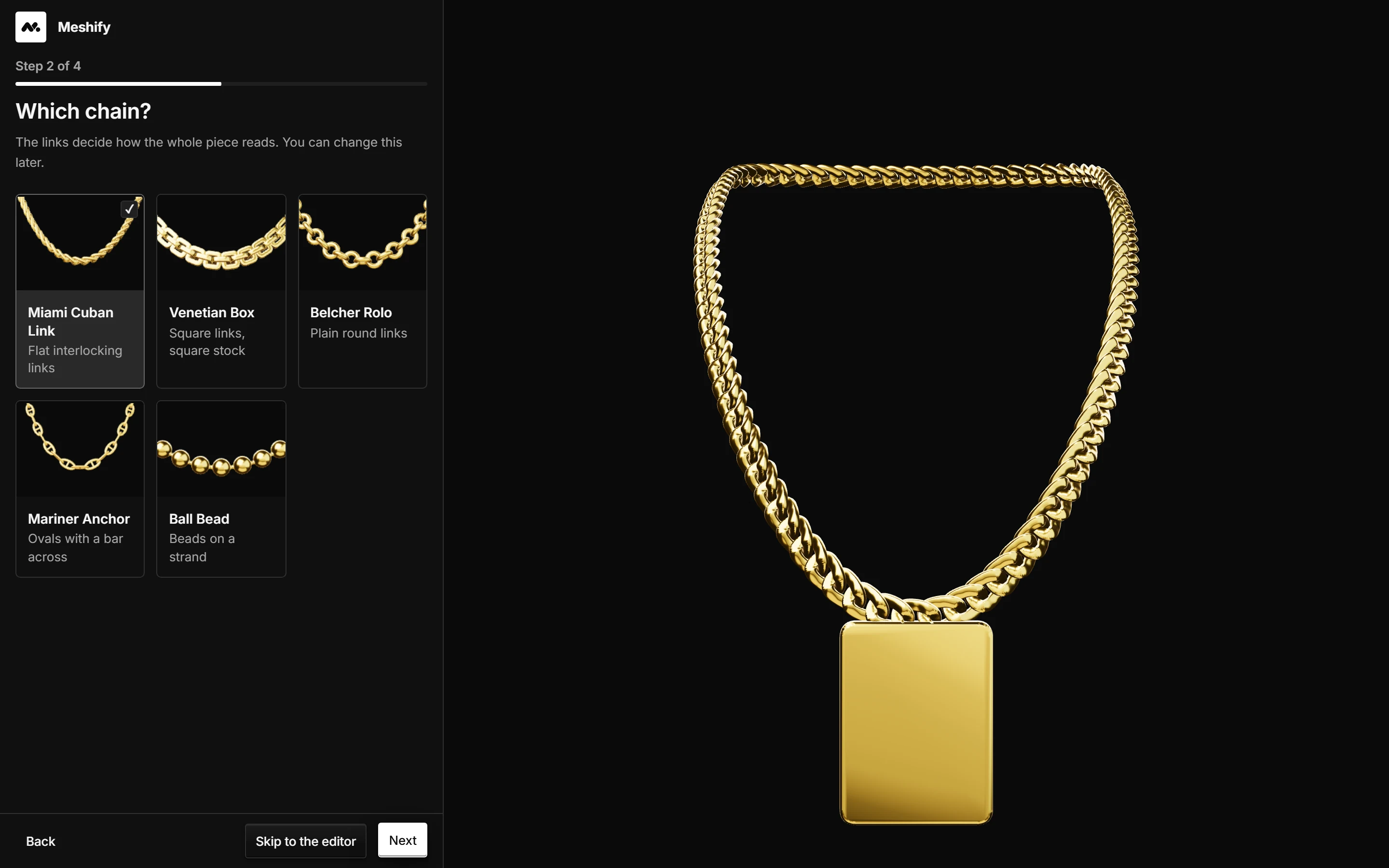
Select Miami Cuban Link, continue through the remaining questions, then choose Open in the editor. A pendant is optional.
Customise it
Click the chain in Layers. The Properties panel now shows controls that belong to a chain instead of generic 3D settings.
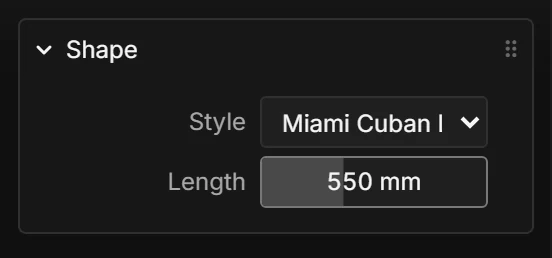
Start with Length. Set it to 550 mm. Meshify rebuilds the chain automatically; you do not resize links one by one.
Preview it
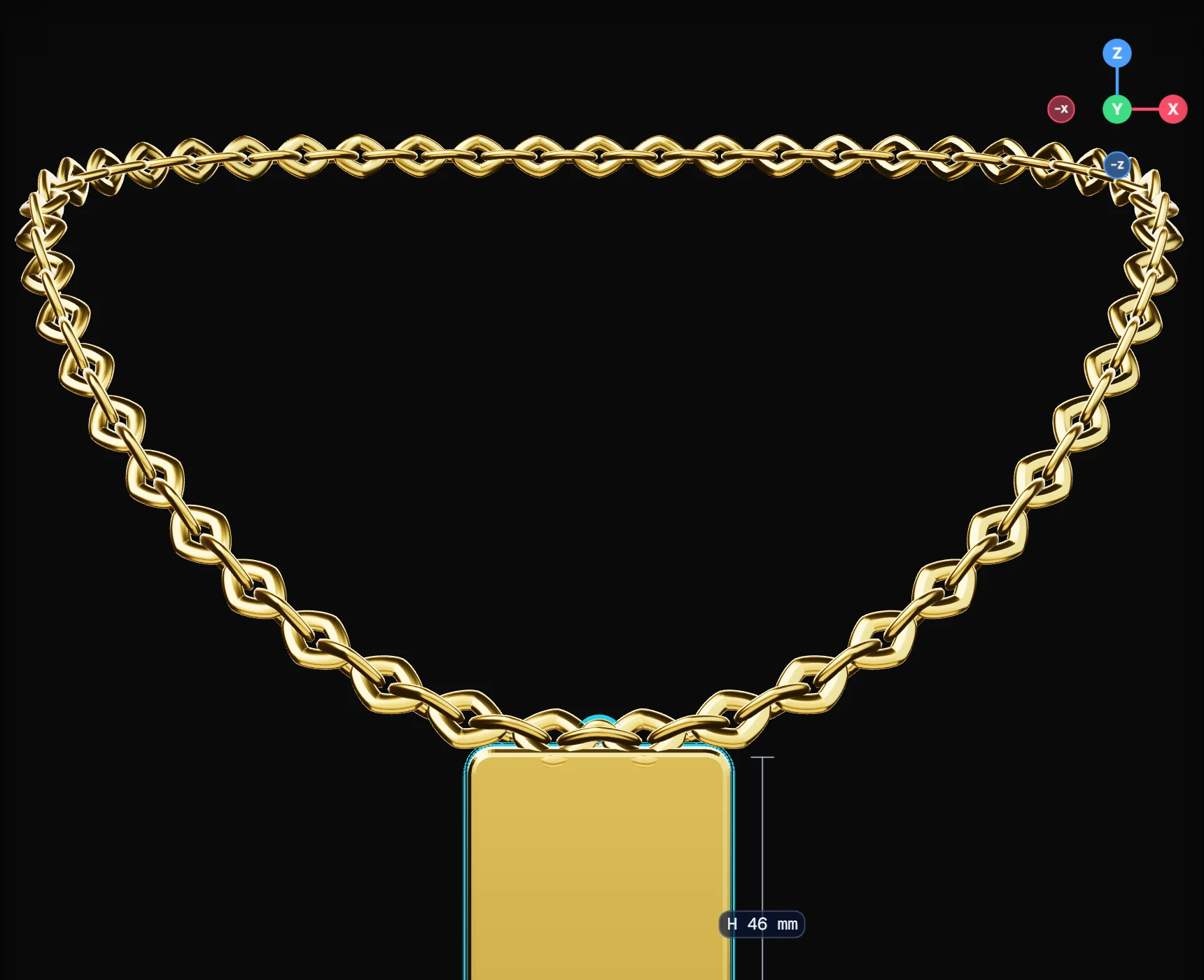
The viewport is your visual check. You are looking for a piece that sits where you expect, reads clearly from several angles and does not intersect the reference character in an obvious way.
- Orbit around the asset
- Left drag
- Pan the camera
- ShiftLeft drag
- Zoom in or out
- Wheel
- Focus the selection
- F
Orbit once around the chain, zoom in around the pendant area and press F if you lose the selected object.
Export it
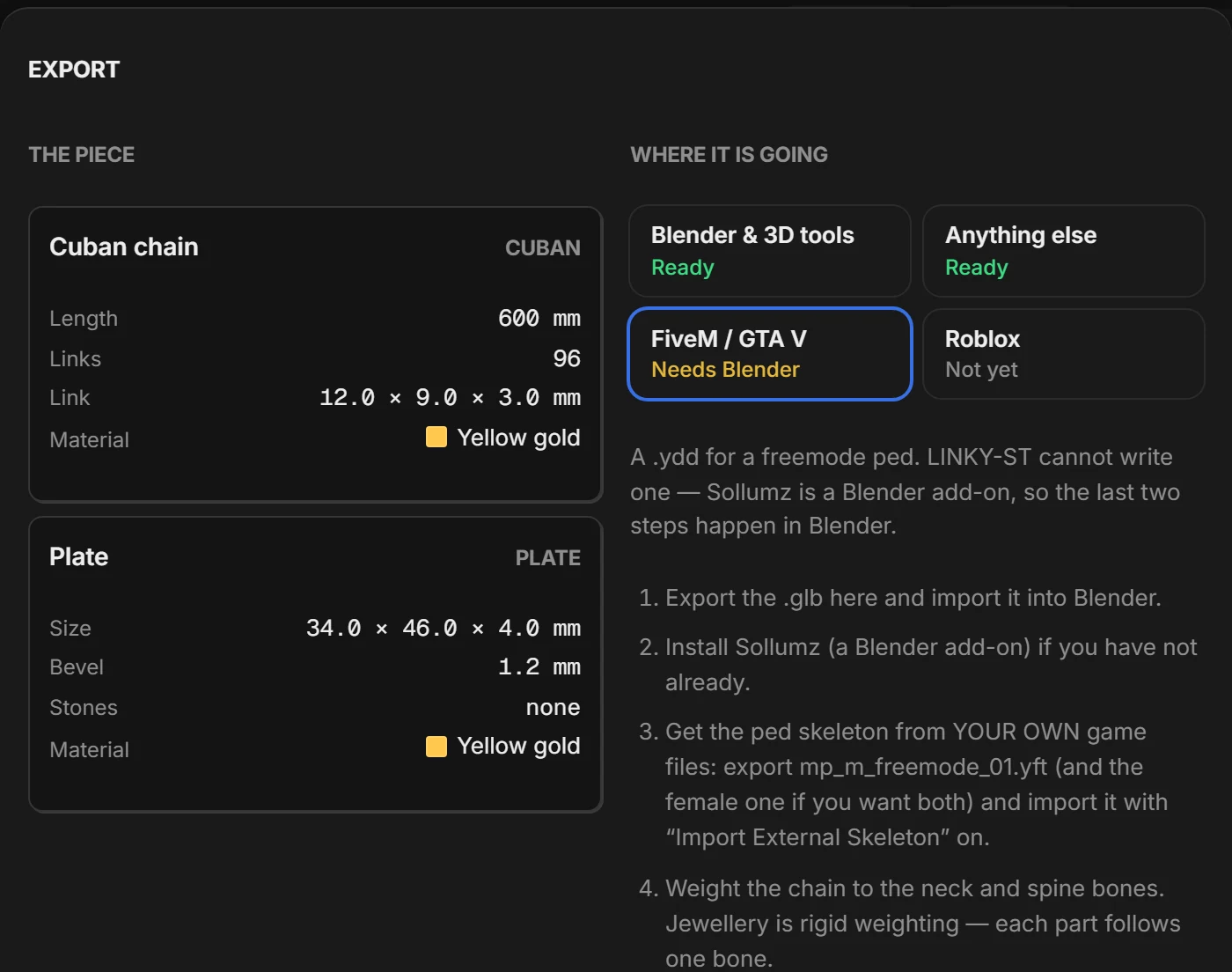
Choose Export in the editor, then select FiveM / GTA V. Open Addon & folder and fill in the resource name, character/slot and destination folder.