Learn the editor
Four areas do most of the work.
You do not need to learn a traditional 3D interface before you can use Meshify. Start with what you can see, what is selected and what you want to change.
On this page
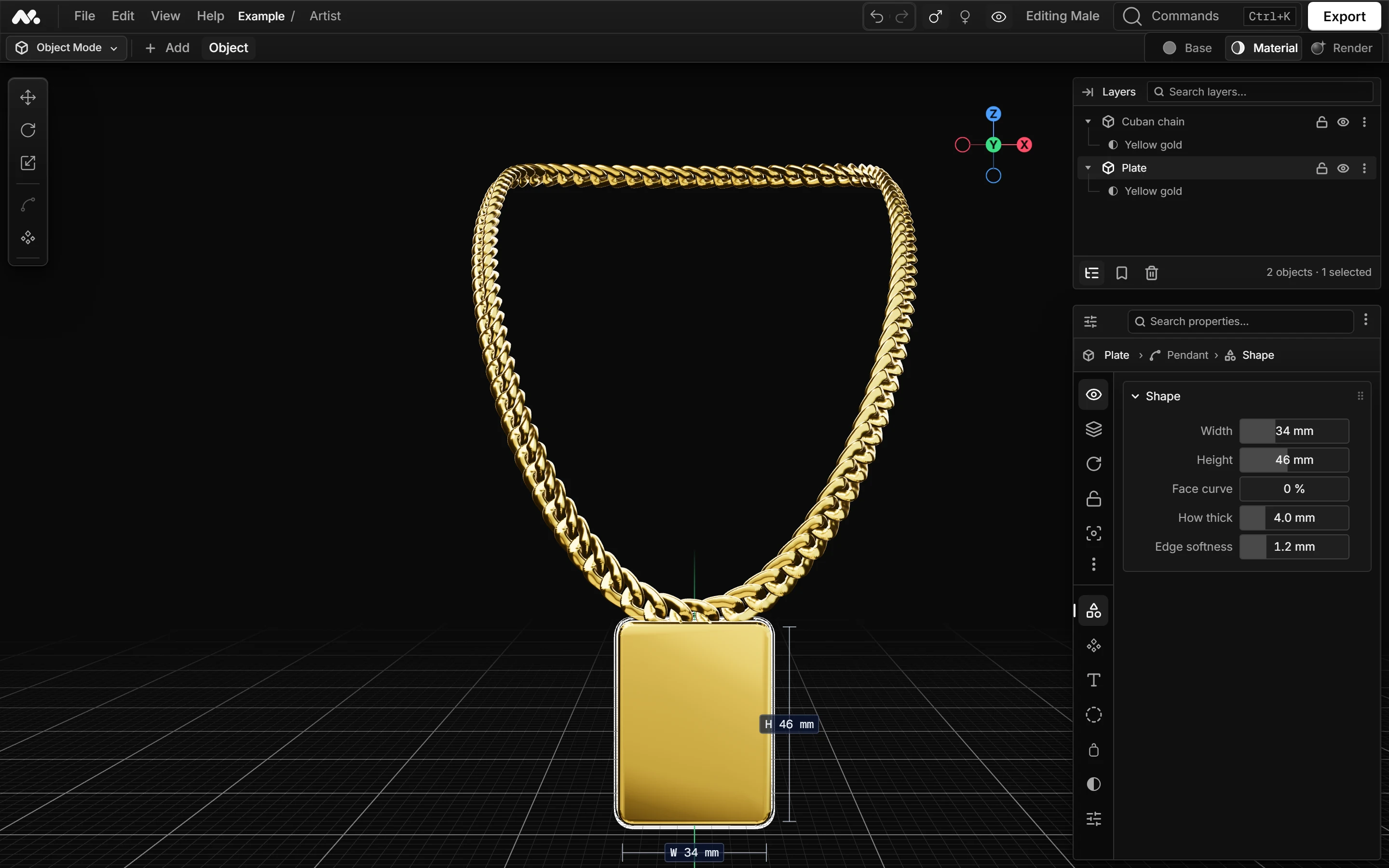
Viewport
The large centre area is the viewport. It is where you see the project, select objects and check how changes look.
- Orbit
- Left drag
- Pan
- ShiftLeft drag
- Zoom
- Wheel
- Focus selection
- F
Layers
Layers is the object list on the upper right. A chain and a pendant are separate objects, so selecting one changes what Properties shows below.
Use Layers when you cannot easily click a small object in the viewport, or when two objects overlap visually.
Properties
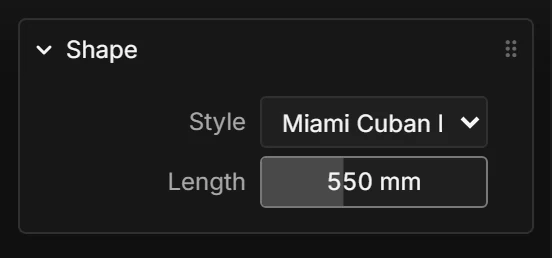
Properties contains controls for the selected object. Meshify deliberately changes this panel by object type: a chain gets chain controls; a ring gets ring controls; a pendant gets pendant controls.
Move, rotate and scale
Transforms change where an object is and how it is oriented. You can use the viewport controls or the same direct keys used by many 3D tools.
- Move
- G
- Rotate
- R
- Scale
- S
- Constrain to X
- X
- Constrain to Y
- Y
- Constrain to Z
- Z
- Confirm
- Enter
- Cancel
- Escape